
- Home
- Calendar
- Policies & Documents
- Become a Referee
- Courses
- Education
- News
- For Referees
- About Us
- Contact Us
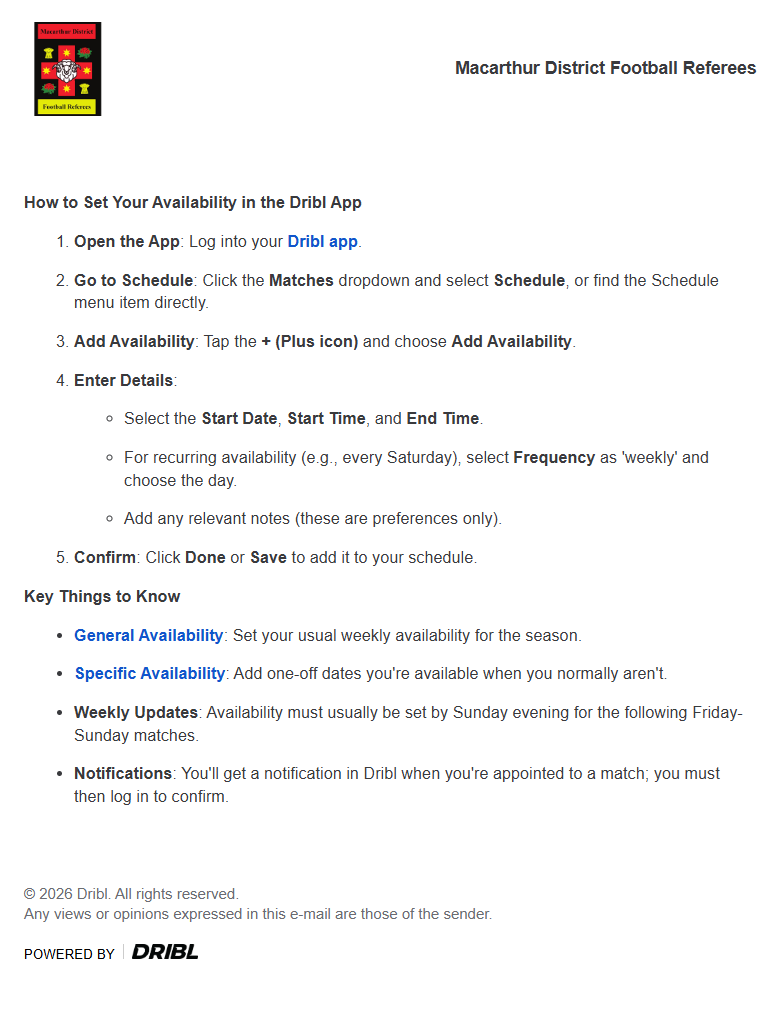
A match official is required to specify their availability to be appointed to matches.
Defining your availability is an important step to efficiently manage your schedule and the appointments you receive.
A Referee Appointment officer will have visibility of the dates and times when you are available or unavailable (blockout period) to officiate matches, reducing the number of match appointments you need to decline.
Open the DRIBL app.
Tap Match Centre from the navigation bar and select Schedule.
Tap on and select Add Availability or Add Blockout.
If you are part of multiple branches, you can specify whether you want the availability or blockout to apply to an individual branch or all. Tap Branch and select the applicable option.
Tap Start Date, specify the required start date and tap on Confirm.
Tap End Date, specify the required end date and tap on Confirm (only required if the frequency is set to Daily, Weekly, Fortnightly or Monthly).
Tap Start Time, specify the required start time and tap on Confirm.
Tap End Time, specify the required end time and tap on Confirm.
Optionally provide additional information. Tap on Notes and type a clear and concise description
Tap Time Zone to optionally change the time zone in which the availability entry will apply.
Tap Save.
Select your referee branch from the dashboard.
Click on Referee Settings located in the top navigation bar.
Click within the Availabilities or Blockout tab.
Select a branch from the drop down list to create the availability or blockout. If you are part of multiple branches, you can toggle on All Branches to apply it to all.
Enter the Start Date and End Date.
Enter the Start Time and End Time.
Select the Frequency you want to apply to the availability or blockout (Single Day, Daily, Weekly, Fortnightly or Monthly).
Select a Day in the week the availability or blockout will apply.
Optionally provide additional information in the Notes.
Click  to Save.